Sign-in and access
Confirm the correct email and workspace, check the invitation and ask an administrator to verify the member role.
- Correct account
- Active invitation
- Appropriate role
MeetInspect keeps fieldwork moving even when the signal stops

Support
Start with the relevant guide, protect any unsynchronised mobile work and send the support team enough context to investigate the underlying issue.
What it covers
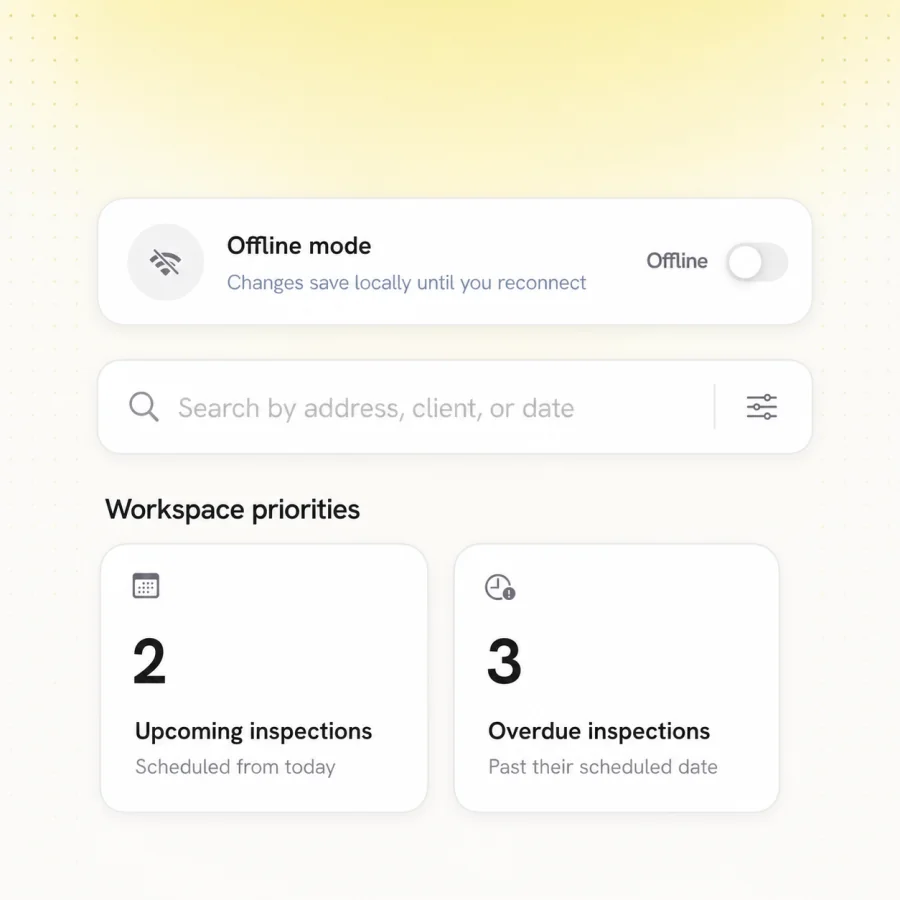
Do not sign out, uninstall the mobile app or delete local data while an inspection is waiting to synchronise.
Confirm the correct email and workspace, check the invitation and ask an administrator to verify the member role.
Reconnect to a stable network, keep the app active and confirm uploads finish before closing the inspection.
Verify required items, synchronisation status and workspace configuration before regenerating or escalating.
In practice
Include the workspace and, when safe to share, the inspection identifier—not unnecessary customer data.
Provide the approximate time, expected outcome, actual outcome and steps already attempted.
Share the app or browser version, device type and connectivity state relevant to the issue.
In depth
When something goes wrong mid-inspection, the instinct is to restart the application, sign out and back in, or reinstall. Each of those risks the one thing that cannot be recovered: inspection work that has been captured on the device but not yet transferred to the workspace.
The correct first step is almost always the opposite of the instinct. Re-establish connectivity, keep the application open, and allow pending work to synchronise before attempting anything else. Only once the record is safe are the usual remedies appropriate.
Support requests that identify the workspace, the approximate time, the device, the connectivity state and what was expected versus what happened are resolvable. Requests describing a symptom without context usually generate a round of questions before anything can begin.
The most valuable single detail is usually timing. Knowing when something occurred allows the event to be located; knowing only that it happened recently does not.
A significant share of reported problems are configuration rather than faults: a template that does not include the expected question, a member without the role required for an action, a report missing a section that was never configured into it.
Checking the workspace configuration before escalating resolves these faster, and the distinction is usually straightforward — a fault behaves inconsistently, while a configuration issue behaves the same way every time.
Next step
Explore the related guidance, or speak with MeetInspect about the inspection your team needs to run.
Field-first inspection software for consistent evidence, offline capture and professional reports.

© 2026 MeetInspect. All rights reserved.